Browser Hijack Removal: Clean Pop-Ups, Redirects and Toolbars
Browser Hijack Removal: Clean Pop-Ups, Redirects and Toolbars
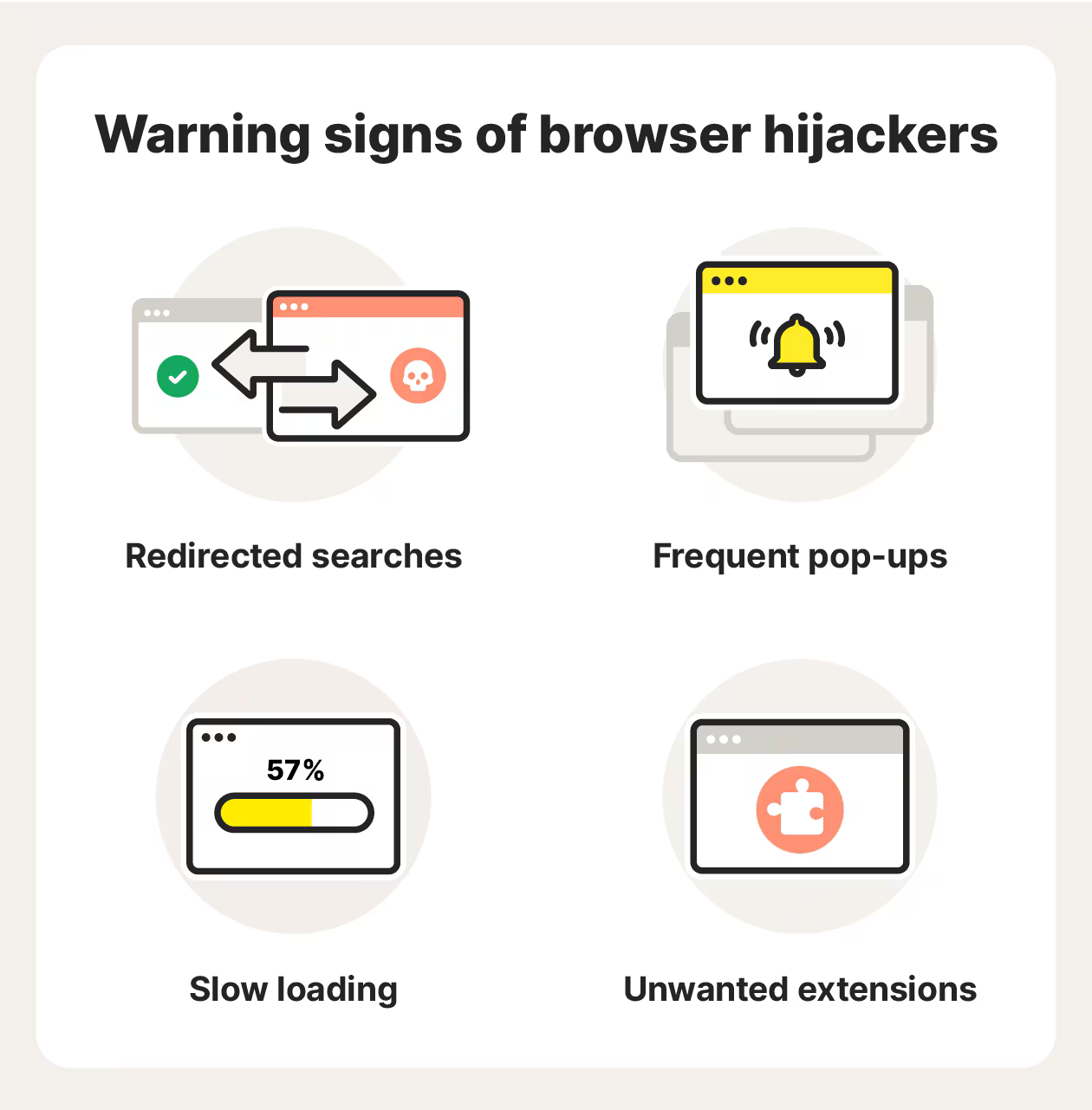
A browser that opens on a page you never picked, a search box that keeps sending you somewhere odd, a toolbar that reappears minutes after you delete it. These are the classic calling cards of a browser hijack. Most of them can be cleared with a patient, methodical approach using tools you can run yourself, and the browser hijack removal plan below follows roughly the order an engineer would work through.
What a browser hijack actually is
Malwarebytes uses "Hijack" as a detection name for a category of system changes that are typically made by malware. Those changes can be written into the Windows registry, and they can also be made in browser configuration files. The usual objective is to run malware-related files or to redirect your browser to sites of the threat actor's choosing.
That description matters for the cleanup. A hijacker is not only a toolbar sitting in your browser. It is a change made to your system, often in more than one place at once. Clearing the visible symptom without clearing the setting behind it is the reason so many people find the redirect back again a day later.
Signs worth acting on
-
Your homepage or new tab page changes to something you did not set, and reverts after you change it back.
-
Searches or typed addresses send you to an unfamiliar site instead of where you expected to go.
-
A toolbar, button or sidebar appears that you never installed.
-
Extensions you do not recognise sit in the browser's add-on list.
-
Pop-up windows appear away from the sites you would normally expect them from, and the browser feels slower overall.
One or two of these on their own could be a stray click or a setting applied by an update. Several together, particularly a homepage that keeps resetting itself, point to something making changes behind your back.
Before you touch anything
Take note of your usual homepage, your preferred search engine and the extensions you actually want to keep. It is far easier to restore a browser when you know what normal looked like. If your browser syncs settings and extensions to other devices, any change may have followed you there too, so check those once the main machine is clean.
Keep a second device nearby, a phone is fine, for looking up any program or extension name you do not recognise. Guessing at names is how people uninstall the wrong thing and lose a printer driver with it.

Photo by AS Photography on Pexels
Step 1: Run a full antivirus and anti-malware scan
The first port of call should be a full antivirus and anti-malware scan. Choose the full option rather than the quick one and let it run to completion, even if it takes a while. A quick scan checks the places threats usually hide, and a hijacker that has settled in is not always sitting in those places.
Malwarebytes is widely used as a second opinion alongside your main antivirus. It detects Hijack as a category, and when it finds anything it lists the items with a Quarantine option. Quarantine the found threats, then reboot if the program prompts you, so the removal can finish properly. AVG is another tool commonly recommended for this job. Running a second scanner is normal practice, because the first may miss a variant the second recognises.
Make a note of what each tool reports before you quarantine, so you have a record to work from if the problem comes back.
Step 2: Clear out suspicious programs
Next, open Control Panel and go to the uninstall programs window. Work down the list looking for recently installed suspicious programs, and anything you simply do not remember agreeing to. A hijacker has to arrive on the machine somehow, and the installed programs list is where that arrival often shows up. Uninstall what you are confident is unwanted.
If a name is unfamiliar but you are not sure whether it belongs to something you use, write it down and check it on your phone before removing it. The uninstall list is also worth a second pass after the reboot, in case something reinstated itself.
Step 3: Strip back extensions and reset browser settings
Hijackers often work through extensions, so each browser needs checking separately. The steps below cover Chrome, Firefox and Edge, and the rule is the same in all three: remove what you did not add, then check every setting it may have changed.
Chrome
Open the extensions page from the browser menu, remove anything you do not recognise, then check the settings for the startup page and the search engine. If the search engine has been replaced by something unfamiliar, change it back. If Chrome still misbehaves once the extensions are gone, the reset option in settings returns it to its default state and clears most rogue configuration.
Firefox
Open the add-ons manager and remove unfamiliar extensions. Check the home page setting and the default search engine in preferences, and look through the list of search providers for entries you did not add. Firefox also offers a refresh, which keeps your bookmarks and passwords but rebuilds the settings around them.
Edge
Open the extensions page from the menu, remove anything unexpected, then check the startup page, the new tab page and the search engine in settings. Edge has its own reset option for when the settings refuse to stick.
Step 4: Check the registry, carefully
Because Hijack detections can sit in the Windows registry as well as in browser files, a thorough cleanup sometimes includes a look at registry entries. This is the part where care matters most. Edit only what you can identify with confidence, and only remove entries tied to software you already know you want gone. If registry editing is unfamiliar territory, leave it to a removal tool, which can handle these entries without you having to judge each one individually.
Step 5: Confirm the fix and watch for a return
Restart the computer, then open the browser and check the homepage, the search engine and the extension list. Close it and open it again. Use it normally for a few days, because some hijackers wait before restoring themselves. If the redirects or toolbars reappear, something was missed: another program, another extension, or an entry the removal tool did not catch.
Keeping it from coming back
Some sources suggest a browser ad blocker as a sensible precaution, particularly the built-in blockers, which cut down on the pushy windows that talk people into installing things they never wanted. Beyond that, slow down at the point of installation. Custom installers frequently present extra ticks and checkboxes, and those are far easier to decline than to unpick afterwards. Keep the browser and the security tools updated, and recheck the extension list now and then, since add-ons can change hands.
When to hand it over
Most hijacks give way to a scan, an uninstall and a browser reset. Some do not. Plenty of people report working through all the usual places and finding nothing obvious, and that is the point where a second pair of hands saves hours of guessing. FixPoint IT Support covers Basildon and the surrounding Essex area for home users and small businesses, with virus and malware removal followed by a post-cleanup security check so you know the machine is genuinely clear rather than just quiet. Prices are agreed upfront and the work runs on a no fix, no fee basis.
Frequently Asked Questions
How can I tell whether my browser has been hijacked or just changed?
The giveaway is whether the change sticks. If you set your homepage or search engine back and it reverts on its own, or if typed addresses take you somewhere you did not ask for, that is a hijack rather than a stray click. Unfamiliar extensions and unwanted toolbars point the same way.
Is uninstalling the toolbar enough to remove a hijacker?
Usually not on its own. Hijack detections can be written into the Windows registry and into browser configuration files, so the toolbar is often only the visible part. Uninstalling it is still worth doing, but follow it with a full antivirus and anti-malware scan and a check of extensions and search settings.
Do I need antivirus software to remove a browser hijacker?
You can remove some hijackers by hand, but a scan is the reliable route and the one most guidance recommends first. Malwarebytes and AVG are commonly suggested tools, and both offer a quarantine step for anything they find. Manual browser resets then tidy up the settings a scan cannot restore.
Why do the redirects come back after I clean the browser?
Because the source was not removed. Something on the system, whether a program in the uninstall list, an extension that reinstalled itself or a registry entry, is putting the settings back. Work through the scan, the program list and the browser settings in order, and reboot before deciding the job is finished.
Should I keep using the browser while it is hijacked?
Not for anything sensitive. A hijacker exists to send you to sites of someone else's choosing, so banking, shopping and email are better left until the machine is clean and a security check has confirmed it. Use another device in the meantime, and change any passwords you typed while the problem was active.