Why Is My Home Computer So Slow? Causes and Fixes
Why Is My Home Computer So Slow? Causes and Fixes
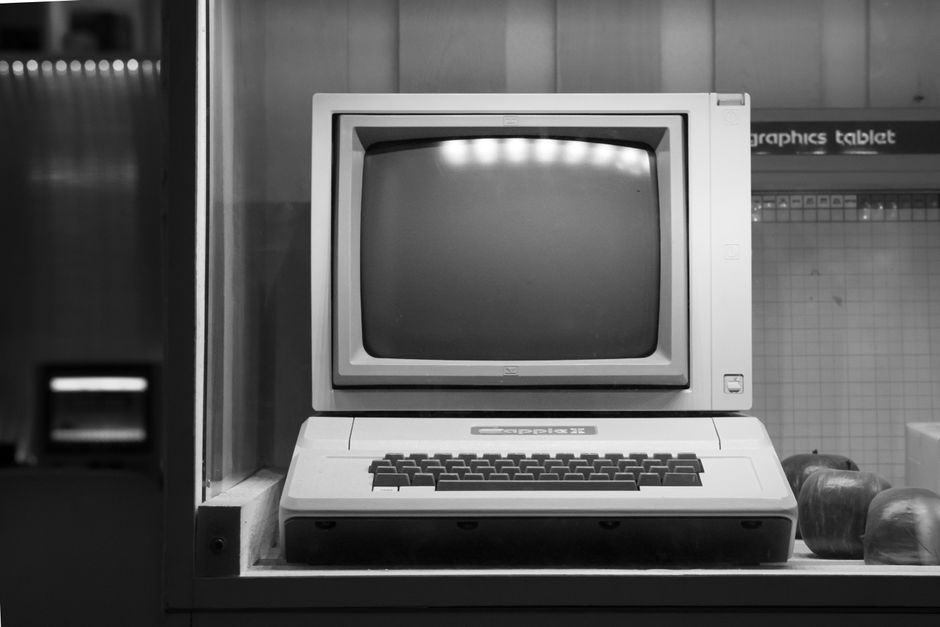
Photo by Piotr Baranowski on Pexels
Why is my home computer so slow? Start by noting when the slowdown happens. Time a restart and open one file saved on the PC. If only web pages or video calls are slow, check the connection. If local apps drag too, check Windows startup, storage and memory.
Why is my home computer so slow at startup or in apps?
Slowdown almost always leaves clues. Extended boot times, long waits when an application launches and sluggish shutdowns all point to a computer that is being held back rather than one that has simply had enough. Before changing any settings, take note of when the delay happens. Is it worst in the first few minutes after switching on? Does it only happen when you open a particular program? Is it worse when several browser tabs are open, or does it happen constantly, even on the desktop with nothing running?
That pattern is useful. A machine that struggles only at start-up is usually weighed down by things loading in the background. A machine that slows down during long sessions may be short of memory. A machine that freezes for several seconds at random intervals may have a drive problem. Matching the symptom to the likely cause saves a lot of guesswork.
The main causes of a slow home computer
Most slow home computers are dealing with two or three of the problems below at once. Working through them in order, from the cheapest and simplest to the more involved, is the sensible approach.
Too many start-up programs
Plenty of software adds itself to the start-up list when it is installed. Each of those items takes a share of the processor, memory and disk as Windows boots, so a machine that was once ready in a short time can end up taking minutes to become usable. Printer utilities, messaging apps, cloud sync clients and update helpers are common offenders. Trimming that list to the essentials is often the single biggest improvement on an older PC.
Programs running in the background
Even after the desktop appears, background programs keep working. Sync tools, browser helpers and scheduled updaters all compete for resources. Individually they are modest. Together they can leave little headroom for the program you are actually trying to use, which is why a computer can feel slow while appearing to do nothing at all.
A hard drive that is nearly full
Low storage space is a frequent cause of poor performance. Windows needs free room for updates, temporary files and the working space it uses while running. When the drive is close to full, everything slows down and updates may struggle to install. Clearing out old downloads, duplicate photos and unused programs is a practical first step.
Drive errors and corrupt system files
Not every slowdown is about clutter. Drive errors and corrupted system files show themselves as unexplained freezing, long pauses and failed operations. An ageing mechanical drive can be on its way out while still booting, so the gradual loss of speed is easy to miss or blame on Windows. This is the point where a proper health check matters, because continuing to use a failing drive risks losing files.
Malware and unwanted software
Malware and viruses remain a common reason for a home computer to slow down. Unwanted toolbars, ad injectors and programs that quietly use your machine for other work all take their share of performance, and they often arrive bundled with something that looked harmless. A machine that has become slow, noisy and full of pop-ups is worth scanning properly.
Outdated software and drivers
Software and drivers that have not been updated in a long time can hold a system back. Windows updates, graphics drivers and browser versions all affect how smoothly a computer runs, and old versions can also leave security gaps. Updates take time to apply, but a machine that has been left for months is almost always better for catching up.
Windows animations and visual effects
Windows animations, transparency effects and other visual touches look pleasant on a new machine with plenty of resources. On an older one they add a small delay to almost every action. Turning them down will not transform a struggling computer, but it does make the desktop feel more responsive.
Not enough memory for what you ask of it
Memory, or RAM, is the workspace a computer uses for the tasks in front of it. When there is not enough, Windows starts shuffling data to the drive and everything becomes choppy. Modern browsing with several tabs, video calls and photo editing all place demands on memory, so a machine bought for light use years ago can feel short of breath on today's everyday tasks. Checking how much memory is installed and how much is in use is worth doing.
An ageing hard drive rather than a solid state drive
An older mechanical hard disk is one of the most common reasons a computer feels slow despite having a decent processor. Replacing the HDD with an SSD is the change that people notice most, because it shortens waiting at start-up and when opening programs. It is a well established upgrade rather than a gamble, and it can give a several year old machine a long second life.
A home check you can work through in an afternoon
If you want to investigate before calling anyone, this order makes sense:
-
Open Task Manager and look at what is using the processor, memory and disk. Note the names of anything unfamiliar or persistently busy.
-
Go through the start-up list and disable items you do not need running from the moment you log in.
-
Check how much free space is left on the main drive and clear out what you can.
-
Run a malware scan for ordinary slowness or suspicious pop-ups once possible drive trouble has been ruled out. If Windows shows a drive warning, protect your important files before running further checks. If a mechanical drive is grinding, shut down and get advice. See Seagate’s drive warning signs.
-
Install pending Windows updates, then update your browser and any software you use daily.
-
Reduce animation and transparency effects in Windows settings.
-
Check the installed memory and how much is in use during a normal working session.
Write down what you changed. If performance improves and then drifts back a few weeks later, that record tells you where to look first.
Matching the symptom to the likely cause
The examples below can help you choose your next check.
-
Slow to reach the desktop. Review startup apps first. If the problem persists, ask about drive health.
-
Slows down with several apps open. Watch memory use in Task Manager while doing your usual tasks. If memory stays nearly full, check whether the computer supports an upgrade.
-
Freezes, pauses or failed updates. Protect important files if the drive is readable and ask for a drive-health check. Shut down if a mechanical drive is grinding.
-
Pop-ups or unfamiliar programmes. Run a scan with your existing security software and investigate any warnings.
-
Main drive nearly full. Review Cleanup recommendations and back up files you want to keep before removing anything.
When it makes sense to call someone
There is no prize for struggling through a diagnosis. If the machine freezes, if you are worried about files that matter, if the drive is making the sort of noises that did not used to be there, or if you have tried the basics and nothing has changed, an hour of proper diagnosis is usually cheaper than guessing. Back up anything important before you start deleting or upgrading.
FixPoint IT Support works with home users across Basildon and the surrounding Essex area on exactly this kind of problem, from performance tune-ups and start-up cleanups to SSD and memory upgrades, virus removal and data recovery. Work is carried out on a no fix, no fee basis with the price agreed upfront before any chargeable work begins, so you know where you stand before anything is pulled apart. Diagnostics start from £45.
Keeping the speed once you have it back
A clean, well maintained computer does not stay that way by accident. Keep the start-up list short and check it again after installing new software. Leave a healthy amount of free space on the main drive rather than filling it to the edge. Apply Windows updates and browser updates rather than postponing them indefinitely. Run a scan now and again, and be careful with free download sites and bundled installers.
If the machine is old enough that a mechanical drive is still inside, that upgrade will do more for day to day responsiveness than any amount of cleanup. Everything else is maintenance. The drive is the part that changes how the computer feels to use.
Go straight to diagnosing slow app launches, finding what is filling your drive or checking how much RAM your PC needs once you know which part is slow.
Frequently Asked Questions
Why does my computer get slower over time?
It accumulates work. Programs are added and quietly stay in the background, drives fill up, updates pile up unapplied, and drives wear as they age. None of those things causes a dramatic failure, but together they leave less headroom, so the same tasks take longer than they did when the machine was new.
Can a slow computer be fixed for free?
Often, yes. Cleaning up the start-up list, clearing out storage space, running a malware scan and installing pending updates cost nothing but time. Many home computers improve noticeably after those steps alone, especially if nothing has been cleaned up since the machine was bought.
Is it worth upgrading an old computer instead of replacing it?
It depends on the rest of the machine. If the processor and memory are broadly adequate and the only real weakness is an ageing drive, moving to an SSD is a sensible and cost effective step. If there are also faults, worn parts or very limited memory, a replacement may be the better value choice once you weigh up the total cost.
How do I know if my hard drive is failing?
Watch for freezes that last several seconds, repeated errors, files that fail to open, and a decline in speed that cleaning up does not fix. Back up anything important before you investigate further. If you receive warnings about the drive from Windows, take them seriously and get the files off the machine sooner rather than later.
Slow computers rarely have a single dramatic fault behind them. They are usually just tired, cluttered and carrying a drive that has done its years of service. Work through the causes above in order and most machines will give you a few more useful years before they need replacing.