Wi-Fi & home networks
Wi-Fi Troubleshooting at Home in Essex: Fix Weak Signal and Dropouts
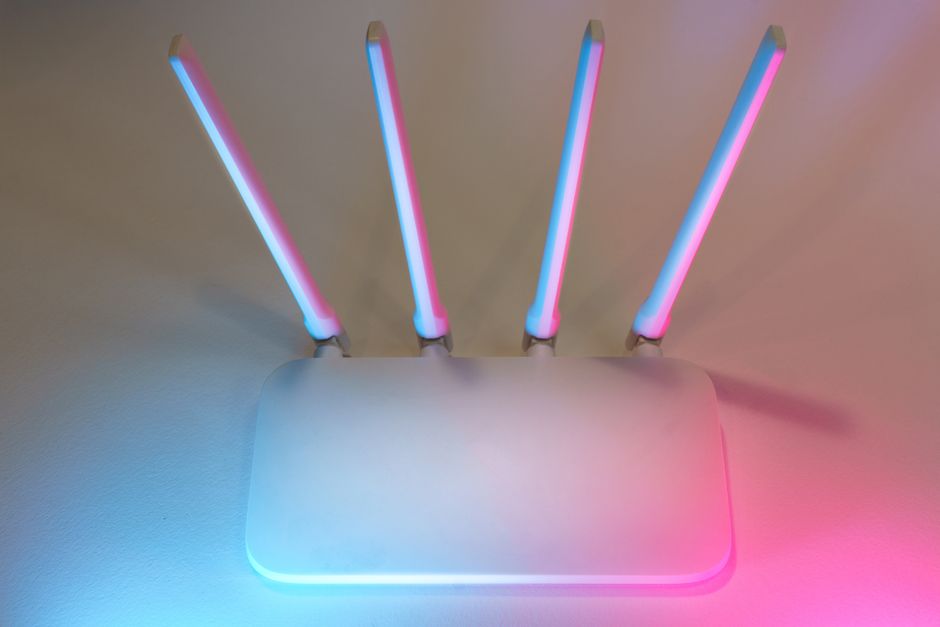
Wi-Fi drops during a video call, an upstairs room has barely any signal, or a laptop says it is connected while nothing loads. These symptoms can have different causes, so the useful first step is to establish which devices and rooms are affected.
This guide to Wi-Fi troubleshooting at home in Essex covers the checks you can try yourself, how to narrow down the fault, and when to ask your broadband provider or a local technician for help.
Start with six simple checks
- Test a second device on the same Wi-Fi. Try it beside the router as well as in the problem room. If you use a phone, temporarily switch off mobile data so it cannot hide the fault by using 4G or 5G instead. Turn mobile data back on afterwards.
- Try more than one website or app. A problem with one service can look like an internet fault. If other sites work, investigate the affected service first.
- Check power, cables and status lights. Check the router and any separate modem or full-fibre connection box. Use your provider's guide to interpret the lights: colours and labels vary by model. An unusual light is a clue, rather than proof of an ISP fault.
- Restart the affected device. Save your work and choose Restart instead of putting it to sleep. Then reconnect to your home network.
- Restart the router once if the problem continues. Follow your provider's instructions. A common approach is to switch it off, wait about 30 seconds, then switch it back on and allow several minutes to reconnect. A restart is different from a factory reset, which can erase your Wi-Fi name, password and other settings. Leave the reset pinhole alone unless your provider or technician guides you through it.
- Try an Ethernet connection if practical. Connect a computer to a LAN port on the router with a network cable and temporarily turn off that computer's Wi-Fi. A stable wired connection while Wi-Fi fails points towards the wireless setup. If both fail, the router, cabling, broadband connection or device still needs checking. Turn Wi-Fi back on after the test.
Make one change at a time and test again. That makes it easier to see which change helped.
Wi-Fi connects but there is no internet
Being connected to Wi-Fi means your device has joined the wireless network. It does not guarantee that websites and online services are reachable.
If several devices cannot get online beside the router, check your broadband provider's service-status page using a separate connection, such as mobile data. The cause could be a provider outage, the router, a separate modem or the connection between them. Two failing devices narrow the search, but do not prove that the provider is at fault.
If the provider reports an outage, follow its updates. If no outage is reported and the basic checks have not helped, contact it for a connection test before buying replacement equipment.
If only one device fails, start with its connection settings and software. A working phone makes a device-specific problem more likely, but does not rule out signal, compatibility or router settings that affect the laptop differently.
For a 4G or 5G home router, also check the mobile provider's service status, signal and account or data allowance. Follow the router's instructions before checking its SIM; a faulty SIM is only one possible cause.
Weak signal and dead spots around the house
A connection that works beside the router but struggles upstairs or in an extension often suggests a coverage problem. Distance, walls, interference and the device itself can affect the result.
Before buying anything, try placing the router out in the open, off the floor and as centrally as its cabling allows. Keep it clear of thick walls, large metal objects and electrical equipment such as microwaves. Repeat the same test in the same rooms after moving it.
If your router offers separate 2.4 GHz and 5 GHz networks, try both with a compatible device. The 2.4 GHz band generally reaches further; 5 GHz can offer higher speeds nearby. The better choice depends on your equipment and surroundings. Some routers use one network name and select the band automatically.
When does mesh Wi-Fi make sense?
A mesh system or an additional access point can help a genuine coverage gap, but placement and configuration matter. A wireless mesh unit needs a usable connection to the rest of the system; follow the manufacturer's placement guidance rather than putting it straight into the weakest spot.
Where suitable equipment and cabling are available, linking access points or mesh units by Ethernet can provide a more stable connection between them. The sensible option depends on your property and existing setup. Adding boxes without checking the cause can leave the original problem unresolved.
When a laptop cannot see the network
First check that Wi-Fi is switched on, airplane mode is off and the laptop is close enough to the router. Then restart it and use the built-in network troubleshooter. On Windows 11, the Get Help app can guide you through network diagnostics.
If other devices can see the network, the laptop's wireless adaptor, driver or settings may need attention. If it can see other networks but not yours, the router's band or security settings may be incompatible with that device.
Avoid uninstalling drivers or resetting all network settings as a first step. Those changes can require extra setup afterwards. If the basic checks do not help, laptop troubleshooting and repair can help establish the cause.
Dropouts that come and go
Intermittent faults are easier to investigate with a short record. Note:
- When each dropout happens and how long it lasts.
- Which devices and rooms are affected.
- Whether devices lose Wi-Fi completely or stay connected with no internet.
- Whether the router's lights change and a wired device loses its connection too.
- Whether the problem began after moving equipment, installing an update or changing settings.
If a wired connection also fails at the same time, the shared equipment or broadband connection needs attention. If Ethernet stays stable while several wireless devices disconnect, investigate the Wi-Fi setup. Neither pattern is a complete diagnosis on its own, but both give your provider or technician useful evidence.
Who should you contact first?
Contact your broadband provider first if several devices lose internet access, the router reports a broadband fault, or both wired and wireless connections fail after the basic checks. It can check for outages and test the service it supplies.
Local IT help can be useful when coverage fades in particular rooms, one device repeatedly fails, or you need help with routers, mesh equipment or wireless printers. You do not need to diagnose the problem before asking for support.
Getting Wi-Fi help in Basildon and nearby Essex
FixPoint IT Support is an independently owned local business helping home users and small businesses in Basildon and the surrounding Essex area. Our Wi-Fi and home network support covers weak signal, repeated dropouts, router and mesh setup, and printers or other devices that will not stay connected.
Wi-Fi help starts from £45, with the scope and price agreed before chargeable work begins. The final cost depends on the work and any equipment required. No fix, no fee applies to repairs; we explain the proposed work and applicable pricing before you go ahead.
To ask FixPoint for help, tell us your postcode, which devices or rooms are affected, and what you have already tried. We can confirm coverage and discuss a suitable next step in plain English.
Frequently asked questions
Why does my Wi-Fi show as connected but nothing loads?
Your device has joined the wireless network, but internet access may still be failing. Try another website and a second device on the same Wi-Fi. If several devices fail, check the router and your provider's service status. If only one fails, investigate that device's settings and software as well as its wireless connection.
How do I tell if the problem is my router or broadband provider?
Compare more than one device, interpret the router lights using your provider's guide, and try Ethernet if possible. These checks help narrow down the cause. If wired and wireless internet access both fail, ask your provider to test the connection; the symptoms alone do not prove whether the router or provider is responsible.
Will a mesh system fix a dead spot in my house?
It can help if coverage is the cause and the units are correctly placed and configured. Mesh will not repair an outage in the incoming broadband service. Check the existing setup and the manufacturer's guidance before buying equipment.
Why has my laptop stopped showing my Wi-Fi network?
Possible causes include Wi-Fi being switched off, airplane mode, weak signal, a driver problem or an incompatible network setting. If other devices can see your network, check the laptop first. That comparison is a useful clue rather than a definite diagnosis.
Should I reset my router?
Try an ordinary restart following your provider's instructions. A factory reset is a separate step that can erase customised settings and passwords. Only do it when you understand how to restore the setup or your provider or technician is guiding you.
Can FixPoint help with Wi-Fi problems at home?
Yes. FixPoint helps with home networks, router setup, coverage problems and connected devices around Basildon and nearby Essex. Send an enquiry with your postcode and the symptoms so we can confirm the most suitable support.