Is a Laptop SSD Upgrade Service Worth It?
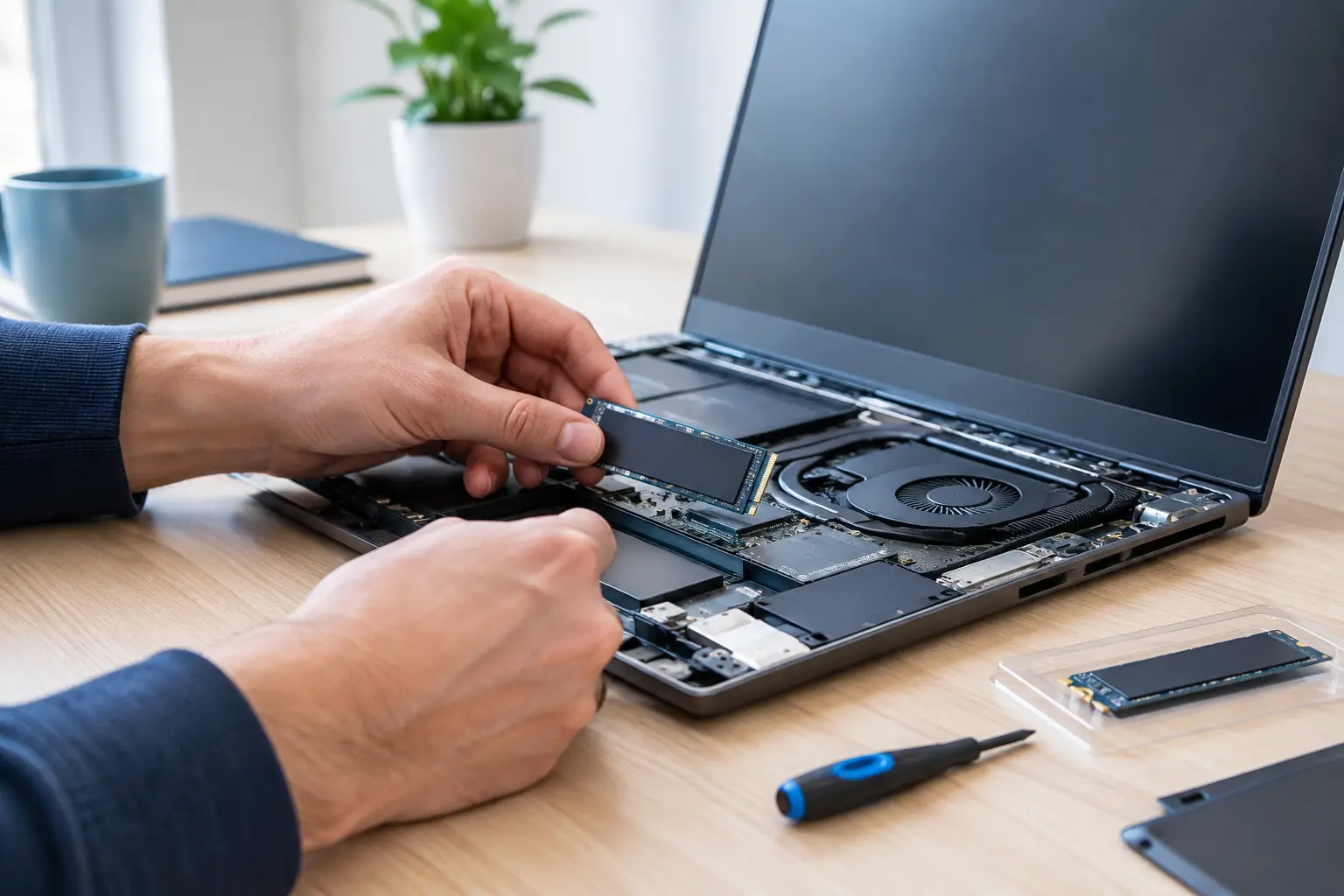
A laptop that takes ten minutes to become usable can make even simple jobs feel like hard work. A laptop SSD upgrade service replaces the older storage drive with a much faster solid-state drive, often giving an otherwise decent machine a noticeably quicker, calmer feel without the cost and disruption of buying new.
For many people, the difference shows up immediately: Windows starts faster, programs open without as much waiting, updates are less painful and files copy more quickly. It is not a magic cure for every fault, though. The right first step is to find out whether the drive is really the cause of the slowdown and whether the laptop is a sensible candidate for an upgrade.
What an SSD upgrade actually changes
Your laptop’s storage drive holds Windows, your programs, photos, documents and other files. Older laptops often use a mechanical hard disk drive, which contains moving parts. An SSD has no moving parts, so it can read and write data far more quickly.
That speed affects the moments you notice every day. Signing in, opening a web browser, launching Word or Outlook, searching for files and restarting after an update should all feel more responsive. An SSD is also quieter and generally less vulnerable to damage from a knock than a traditional hard drive.
The improvement can be particularly worthwhile where a laptop is otherwise in good condition but has become frustratingly slow. A five- or six-year-old laptop may still have a perfectly usable screen, keyboard, battery and processor. Replacing its storage can give it several more useful years.
There are limits. If a laptop has very little memory, a failing battery, overheating problems or an older processor that struggles with modern software, an SSD alone will not solve everything. A proper check avoids spending money on an upgrade that only addresses part of the problem.
When a laptop SSD upgrade service makes sense
An upgrade is often worth considering if your laptop takes a long time to start, regularly shows a spinning circle while opening basic programs, or becomes unresponsive when saving files. It can also be a sensible preventative step if an ageing hard drive is making unusual clicking noises or reporting errors. In that situation, protecting your files quickly matters more than chasing extra speed.
It may be less suitable if the laptop has physical damage, cannot support a compatible SSD, or needs several costly repairs at once. Sometimes replacement is the more practical option, especially if you need a larger screen, better battery life or software that the old machine cannot run reliably.
For a home laptop, the choice often comes down to the amount of storage you genuinely need. A smaller SSD can be enough for web browsing, email, documents and photos stored safely elsewhere. If you keep years of photographs, videos, games or work files on the machine, a larger drive may be the better fit. Bigger is not automatically better if much of the space will never be used, but choosing too little can create a new problem later.
Small businesses should also consider how the laptop is used. A machine holding local business records, Microsoft 365 files synchronised for offline use, specialist software or encrypted data needs a more careful plan. The aim is not just a faster computer, but a working setup that staff can use safely when it is returned.
What happens during an SSD upgrade
A good upgrade starts with a conversation, not a screwdriver. Tell the technician what has changed in your own words: perhaps the laptop has always been slow, perhaps it started freezing last week, or perhaps you are worried about files you cannot replace. That information helps determine whether testing, repair, an SSD upgrade or a different solution is appropriate.
The laptop can then be checked for drive health, compatibility and other underlying issues. There are different SSD formats, and the right choice depends on the model. Some laptops use a 2.5-inch SATA drive, while others take a smaller M.2 drive. They are not interchangeable simply because they are both called SSDs.
If an upgrade is suitable, there are usually two approaches. Where the existing drive is healthy enough, its contents may be copied to the new SSD so that Windows, programs and familiar settings remain in place. This is often convenient, but it depends on the condition and size of the old drive.
If the current installation is damaged, full of unwanted software or affected by a fault, a clean Windows installation can be the better route. Your important files should be discussed before work begins, and software licences or passwords may be needed afterwards. A clean installation can feel fresher, but some applications will need setting up again.
Data matters in both cases. No transfer method can promise that every file is recoverable from a failing drive, particularly one that has already stopped responding. If your laptop still works, back up the files you cannot afford to lose before the problem worsens. Avoid repeatedly restarting a drive that is clicking, disappearing or making the laptop freeze - seek advice instead.
Choosing the right capacity and type of SSD
The best drive is not necessarily the most expensive one. Compatibility, capacity, reliability and the way you use the laptop all matter.
A modest-capacity SSD can suit a student laptop used mainly for coursework, browsing and cloud storage. A family computer that holds photos and videos may need more room. For a work laptop, leave enough free space for updates, temporary files and documents. An almost-full SSD can lose some of the breathing room that makes a computer feel responsive.
It is also worth checking whether the laptop has room for one drive or can retain an existing storage drive alongside the SSD. Some models allow this; many do not. A technician can explain the practical options without pushing you towards storage you do not need.
Memory upgrades are sometimes considered at the same time. More RAM can help if you use lots of browser tabs, video calls or several programs together. However, RAM and storage solve different bottlenecks. A laptop with a mechanical hard drive will usually benefit greatly from an SSD even if its memory is adequate.
How much does an SSD upgrade cost?
The total depends on the laptop model, the type and capacity of SSD, whether data needs transferring, and whether additional faults are found. It is better to get a clear quote for the work and parts than rely on a one-size-fits-all figure.
At FixPoint IT Support, relevant repair and support labour guide prices start from £45. This is a starting guide price, not an all-inclusive price for every upgrade or repair. The SSD itself and any extra work are quoted separately, with customer approval before chargeable work goes ahead.
That clarity is useful when an older laptop needs more than one thing. If testing finds that the storage drive is only part of the issue, you can decide whether to proceed, change the plan or put the money towards a replacement device. Repairs are covered by no fix, no fee, while any parts and agreed work are discussed clearly beforehand.
Laptop SSD upgrade service in Basildon and surrounding Essex
If you are not comfortable opening a laptop, that is completely reasonable. Modern laptops can have delicate clips, hidden screws, internal batteries and components that are easy to damage. The bigger risk is often not fitting the drive itself, but losing access to important files or ending up with Windows that will not start.
A local technician can test the laptop, recommend a compatible option and carry out the installation without the jargon. Home and business visits, workshop repairs and qualifying local collection and return can be arranged by booking, subject to location and availability.
Before booking, make a short note of the laptop model, what it is doing, whether it still starts, and the files or programs you rely on. Do not worry if you cannot find every detail - that is what the assessment is for. A straightforward conversation and an agreed quote make it much easier to decide whether an SSD upgrade is the right next step.
A slow laptop does not always need replacing. If the rest of the machine is sound, a carefully chosen SSD can turn daily waiting into a computer that simply gets on with the job.