Remote Working Computer Setup That Works
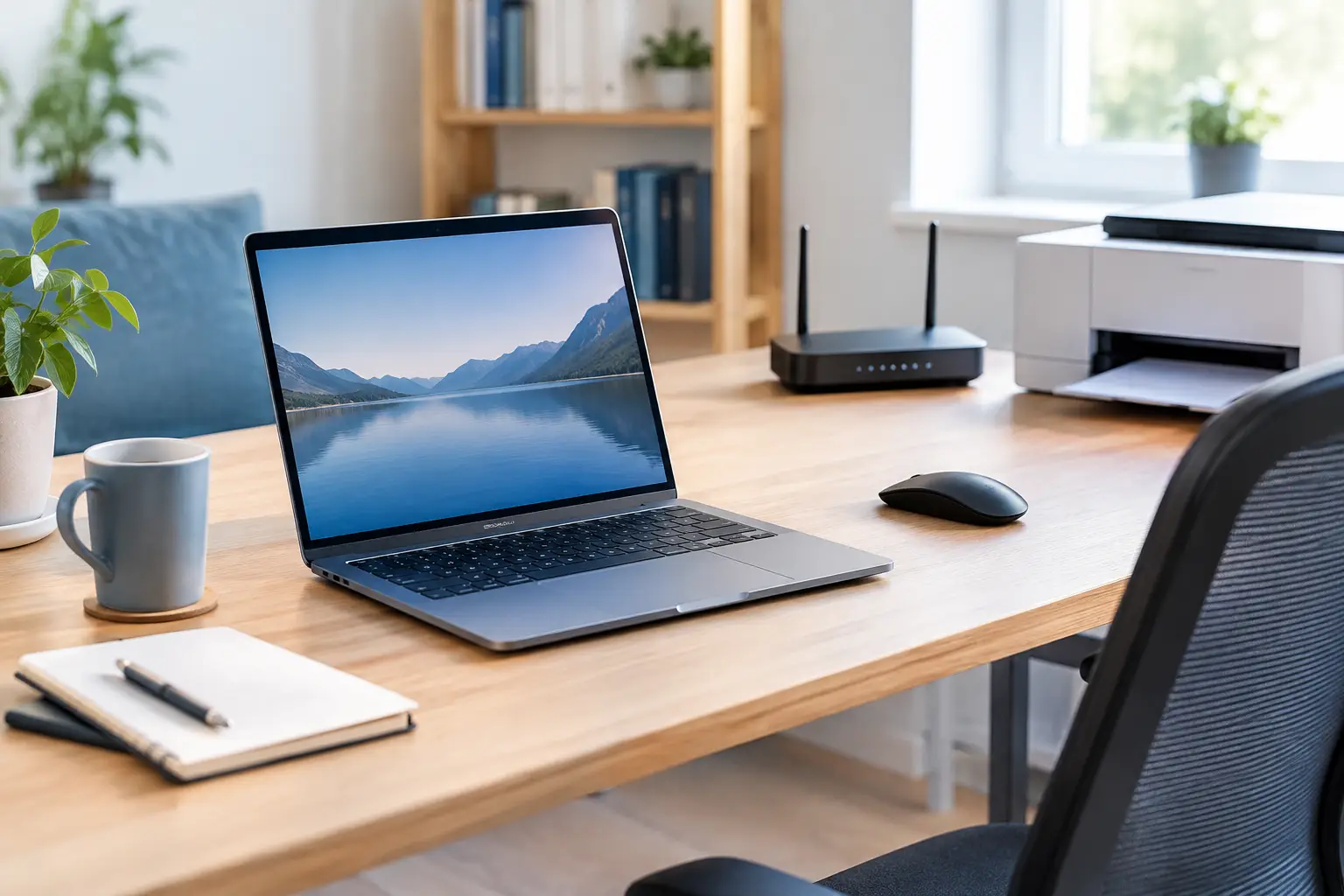
A remote working computer setup does not need a room full of expensive equipment. It does need to be dependable on the morning you have an important video call, a deadline to meet or a customer waiting for an answer. A few sensible choices can make work feel calmer, quicker and far less frustrating.
The aim is simple: a computer that starts promptly, a connection that does not drop out, a comfortable place to sit and a safe way to keep your work. Start with what is already causing problems, rather than buying gadgets that may not solve them.
Start with the computer you already have
Before replacing a laptop or desktop, look at how it performs during a normal working day. If it takes several minutes to start, freezes when you open several browser tabs, or struggles with Teams or Zoom calls, it may need attention. A full storage drive, too little memory, outdated software or unwanted programs running in the background can all slow a machine down.
For many people, an SSD upgrade makes the biggest difference. Older computers often use a mechanical hard drive, which can make everyday tasks feel sluggish. Replacing it with an SSD can improve start-up times and make programs open more quickly. Extra memory can also help if you regularly use Microsoft 365, web-based systems, spreadsheets and video calls at the same time.
That said, an upgrade is not always the right answer. A very old machine may no longer receive the security updates it needs, while a laptop with battery, screen or charging faults may be better assessed before any money is spent. A technician should explain the options in plain English and give you a quote for parts and additional work before going ahead.
Keep enough free space
Try not to let your main drive become completely full. Windows needs working room for updates and temporary files, and a nearly full drive can make a computer behave unpredictably. Move old downloads, duplicate photos and large personal files to suitable storage, but do not delete work documents just to create space until you know they are backed up.
Give your desk the attention it deserves
A comfortable workspace is part of a practical remote working computer setup. It is difficult to concentrate when you are hunched over a small laptop screen for eight hours or trying to type at the kitchen table with your shoulders raised.
If you use a laptop most days, consider raising its screen to a more comfortable height and using a separate keyboard and mouse. This lets you sit back rather than curling over the device. An external monitor can make a noticeable difference too, particularly when you compare documents, work with spreadsheets or need a video call open alongside other applications.
You do not need to create a perfect home office overnight. Start with the items that affect you every day: a supportive chair, sensible screen height, enough light and a clear area for papers and a notebook. Avoid placing a monitor directly in front of a bright window where possible, as glare can cause eye strain and make calls look poorly lit.
Choose the right monitor and accessories
For general office work, clarity and screen size matter more than impressive specifications. A monitor that allows you to read text comfortably at arm's length is usually more useful than one chosen for gaming features you will never use. If desk space is limited, one good monitor may be enough. If your work involves accounts, design work, scheduling or several systems at once, two screens can be worthwhile.
A wired keyboard and mouse are straightforward and reliable. Wireless versions keep a desk tidier but need charging or replacement batteries. Headphones with a built-in microphone can reduce background noise on calls, especially in a busy household. Test them before an important meeting, rather than discovering the microphone is using the wrong setting five minutes beforehand.
Make Wi-Fi reliable where you work
Good broadband coming into the house does not always mean good Wi-Fi at your desk. Thick walls, distance from the router, poorly placed equipment and interference can all lead to slow downloads and choppy video calls. If the signal is weak only in one room, moving closer to the router for a short test can help confirm whether coverage is the issue.
Where practical, a network cable between the router and computer is often the most stable option. It is particularly useful for a fixed desktop, regular video conferences or large file transfers. If a cable is not realistic, the answer may be better router placement, a properly chosen Wi-Fi extender or a mesh system. The right option depends on the property and where you actually work.
Do not hide the router in a cupboard, behind a television or on the floor if you can avoid it. Keep it in a reasonably open, central position and make sure it has current security settings. If you are unsure who has access to your network, or devices keep disconnecting, it is worth getting it checked rather than repeatedly restarting everything.
Set up calls before they matter
Video calls are now part of ordinary work for many small businesses and home workers. They should not require last-minute panic. Check that your camera, microphone and speakers work in the application you use most, and install updates when you have time to deal with any changes.
Your background does not need to look like a studio. A tidy, well-lit spot is usually enough. Face a window or lamp rather than sitting with strong light behind you, which can turn your face into a silhouette. If other people are at home, headphones can keep conversations private and reduce echo.
It also helps to have a fallback plan. Keep your phone charged, know how to join a meeting from it if necessary and save key contact details somewhere you can reach without the computer. That is not being overly cautious. It is simply good preparation when a call matters.
Protect work files without making life difficult
One copy of an important file is not a backup. A laptop can be lost, a drive can fail and a mistaken click can overwrite something you need. If you work for an employer, follow its rules for storing and sharing files. If you run a small business, decide where documents, customer information and accounts data should live, who can access them and how they are backed up.
Cloud storage can be helpful, but synchronisation is not always the same as a separate backup. If a file is deleted or corrupted, that change may also sync. Keep a second, appropriate copy of important data and check occasionally that you can restore it. For particularly valuable information, ask for advice before making major changes or attempting recovery yourself.
Use a strong, unique password for every important account and turn on multi-factor authentication where available. Password managers can make this easier without relying on a notebook full of reused passwords. Keep Windows, browsers, Microsoft 365 and security software updated, but schedule updates outside critical working hours where possible.
Separate work from everyday clutter
A work computer does not have to be used only for work, but a little separation helps. Create clear folders, pin the programs you use daily and remove applications you no longer need. Keep personal downloads away from customer documents and be careful with unexpected attachments, pop-ups and emails asking you to sign in urgently.
For small businesses, shared accounts and informal file storage can become a problem as soon as another person needs access. A proper Microsoft 365 setup, sensible permissions and individual user accounts make it easier to control access and understand who changed a file. You do not need a long support contract to get help with a one-off setup, a tidy-up or an improvement project.
When it is time to ask for help
If your computer is slow, your Wi-Fi drops out or your printer only works when it feels like it, you do not have to diagnose it alone. Tell a technician what has gone wrong in your own words and what you have already tried. That is often more useful than trying to guess the technical cause.
FixPoint IT Support can assess home and small-business computer problems in Basildon and the surrounding Essex area, with home or business visits, workshop repairs and qualifying collection or return arranged by booking. Guide labour prices for relevant support and repair work start from £45, while parts and any additional work are quoted and agreed before chargeable work proceeds. Repairs are covered by no fix, no fee.
The best setup is not the one with the most equipment. It is the one that lets you start work confidently, keep your files safe and get on with your day without technology demanding all your attention.